Chapter 5 Peak Settings (Peak Tab)
In the Peak tab, you configure the number of peaks, function types, and prior distributions used to fit the spectrum.
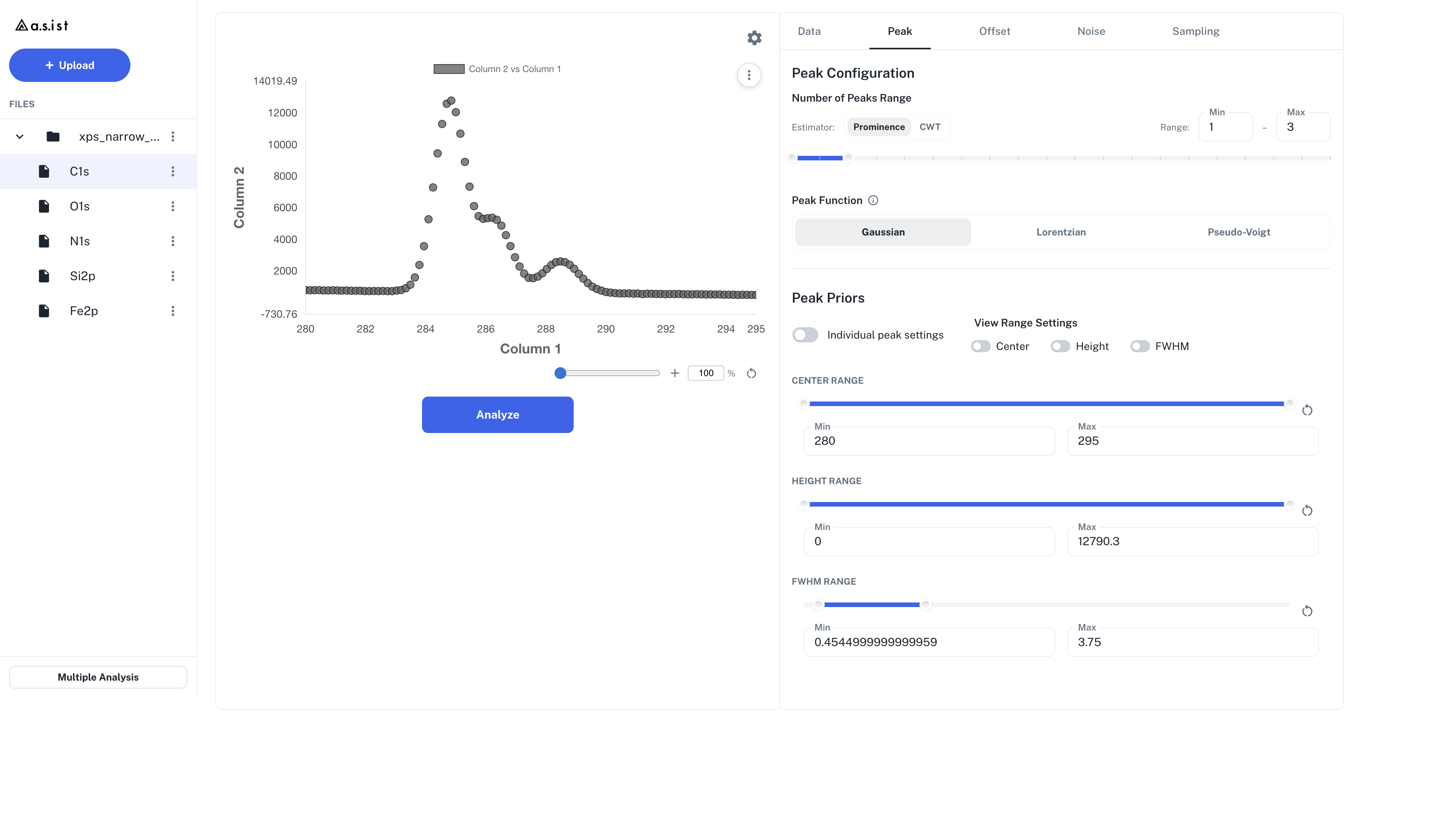
5.1 Search Range for the Number of Peaks
In the Model search range section, specify the lower (Min) and upper (Max) bounds for the number of peaks.
- The slider covers values from 1 to 20. To specify more than 20, type the value directly into the numeric input field
- During analysis, a separate model is evaluated for each peak count from Min to Max, and the model with the lowest Bayesian free energy is selected as the optimal model
- If the number of peaks is already known, set Min = Max to analyze with that count only
Important: Free Energy and Model Posterior Probability cannot be compared across the Height / Area settings of Intensity parametrization. Model comparison is only valid within a single run that uses the same parametrization.
Click the reset icon in each section to restore defaults derived from the current data.
5.2 Peak Functions
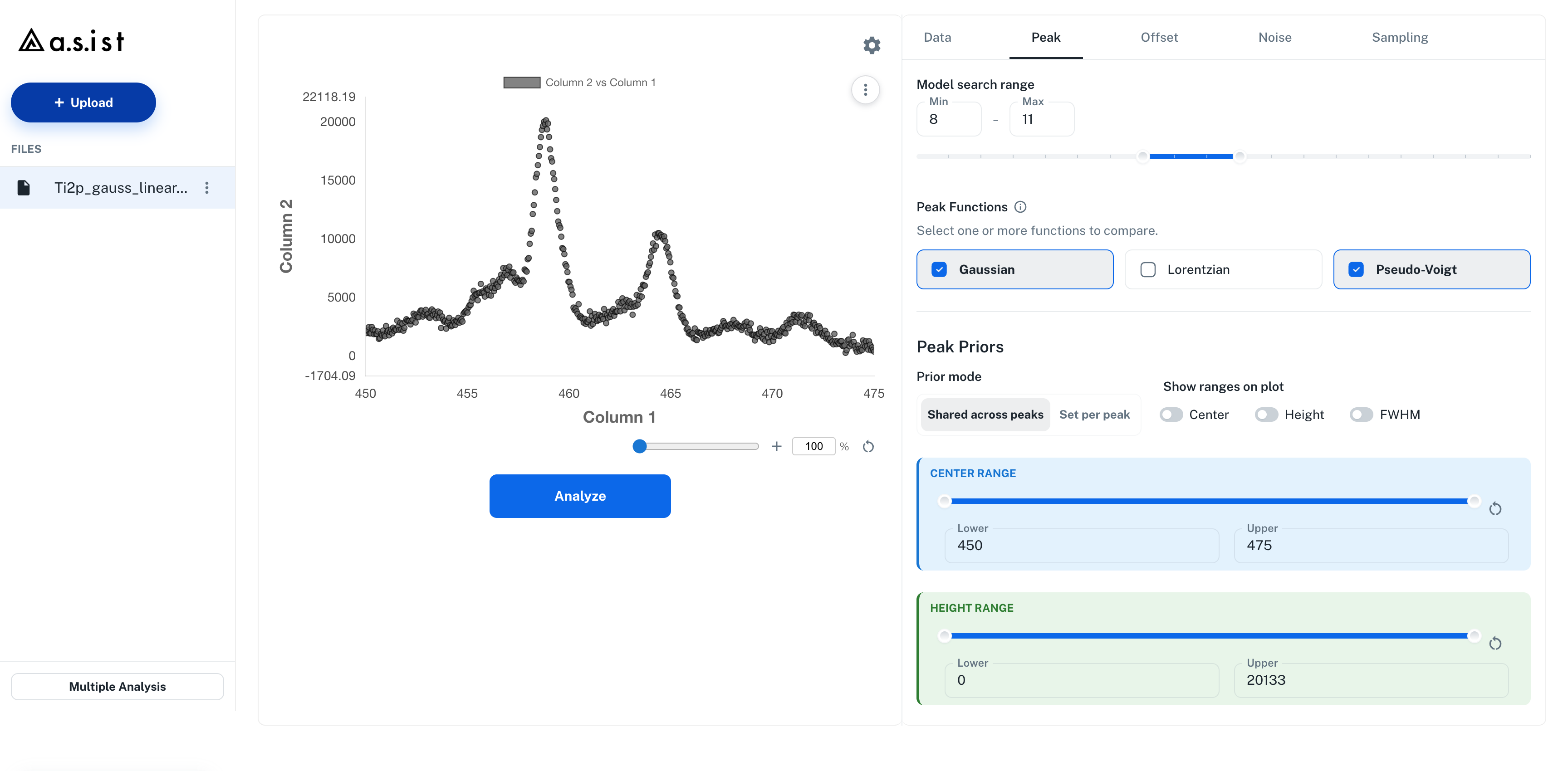
In the Peak Functions section, you can select multiple basis functions to fit.
| Function | Equation |
|---|---|
| Gaussian | \(f(x) = A\exp\left(-\frac{(\mu - x)^2}{2\sigma^2}\right)\) |
| Lorentzian | \(f(x) = A\frac{b^2}{b^2 + (x - \mu)^2}\) |
| pseudo-Voigt | \(f(x) = A(1 - \eta)\frac{\sigma^2}{\sigma^2 + (x - \mu)^2} + A\eta\exp\left(-\frac{\ln 2 \cdot (x - \mu)^2}{\sigma^2}\right)\) |
Note: In the pseudo-Voigt equation, \(\sigma\) is the half width at half maximum (HWHM). The FWHM prior in the UI is sent to the analysis as \(\sigma = \mathrm{FWHM}/2\).
Click the (i) icon next to the Peak Functions label to display the equations of the selected functions in a popover.
- When multiple functions are selected, each combination of function type and peak count is evaluated separately
- At least one function must remain selected (the last one cannot be deselected)
- When pseudo-Voigt is included, a
Mix Ratio (η)slider appears at the bottom of Peak Priors
5.2.1 Intensity parametrization (Height / Area)
Intensity parametrization selects which parameter is used to directly estimate the peak intensity.
| Mode | Directly estimated intensity | pseudo-Voigt mixing ratio |
|---|---|---|
| Height | Peak height \(H\) | Height-form Gaussian fraction \(\eta_H\) (the existing export column name remains MixRatio for compatibility) |
| Area | Integrated area \(S\) | Gaussian fraction with respect to area \(\eta_A\) (exported as MixRatio_Area) |
In Area mode, instead of computing the area afterward from Height and FWHM, you enter the range of \(S\) directly as the Area prior. For pseudo-Voigt, \(\eta_A\) is also kept as a prior separate from \(\eta_H\). Switching between Height and Area preserves the priors entered in each mode.
When a new file is loaded and all settings are reset, the Intensity parametrization selection reverts from Area to the default, Height.
5.3 Peak Priors
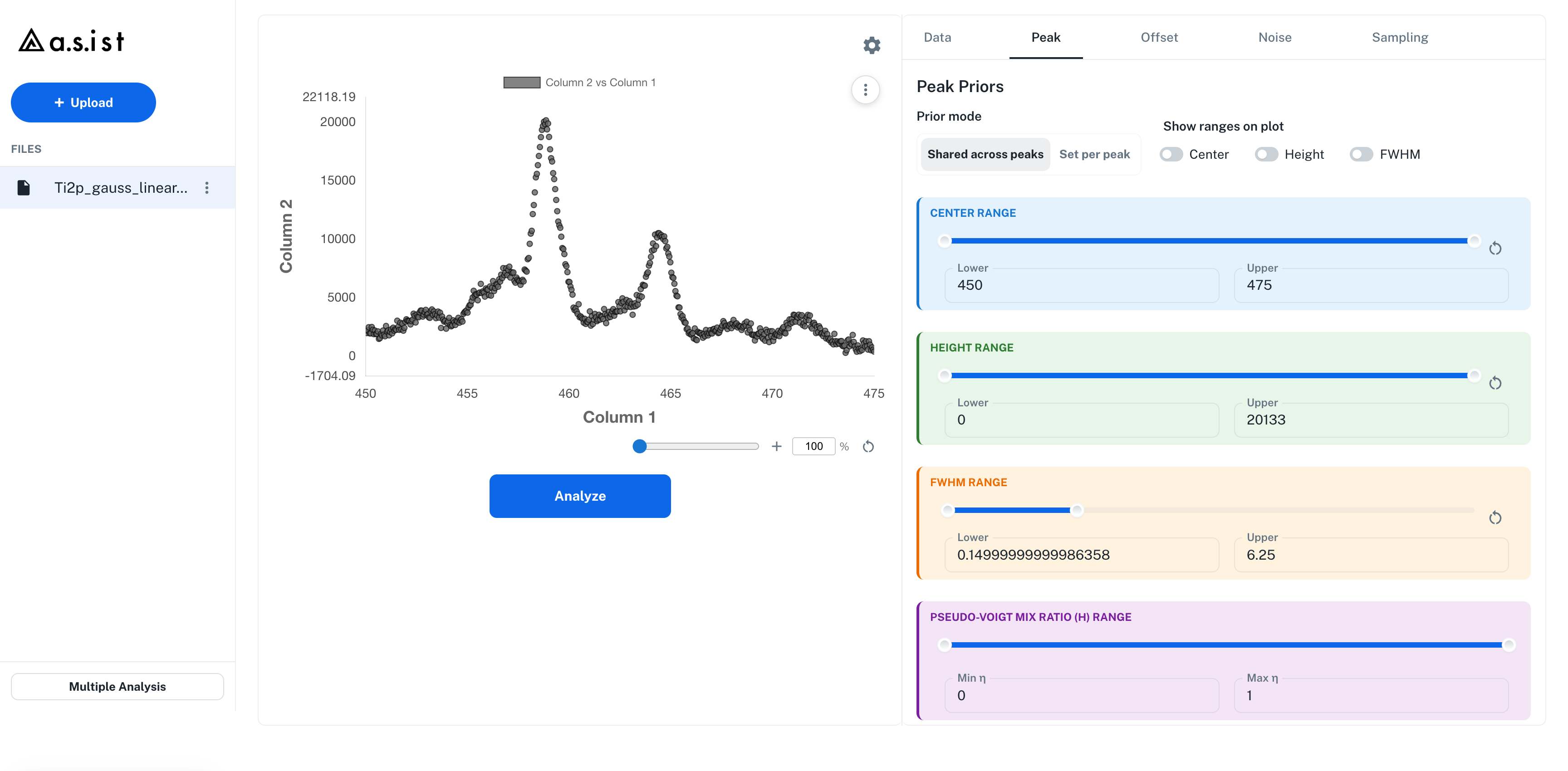
In the Peak Priors section, you set the prior distribution range for each peak parameter.
Parameters
| Parameter | Description | Unit |
|---|---|---|
| Center | Peak center position | X-axis unit |
| Height | Peak height in Height mode | Y-axis unit |
| Area (\(S\)) | Integrated area in Area mode | X-axis unit × Y-axis unit |
| FWHM | Full width at half maximum | X-axis unit |
| \(\eta_H\) / \(\eta_A\) (Mix Ratio) | pseudo-Voigt only. Gaussian component fraction in height form (Height mode) or area form (Area mode) (0 = Lorentzian, 1 = Gaussian) | 0 to 1 |
Each parameter has a lower-to-upper range, adjustable with the slider or numeric input.
5.3.1 Prior mode (Shared / Set per peak)
The Prior mode segmented control at the top of the Peak Priors section selects how priors are applied.
| Mode | Behavior |
|---|---|
| Shared across peaks | The Global settings at the top of the section apply to all peaks |
| Set per peak | Independent priors can be set for each individual peak |
In Shared across peaks, the Area-mode \(S\) and \(\eta_A\) are resolved from the Global settings only; per-peak Area settings retained from before the switch are not consulted. In contrast, Height / Center / FWHM / \(\eta_H\) keep the legacy resolution order (a per-peak setting takes precedence if present, otherwise the Global setting) for compatibility with existing results.
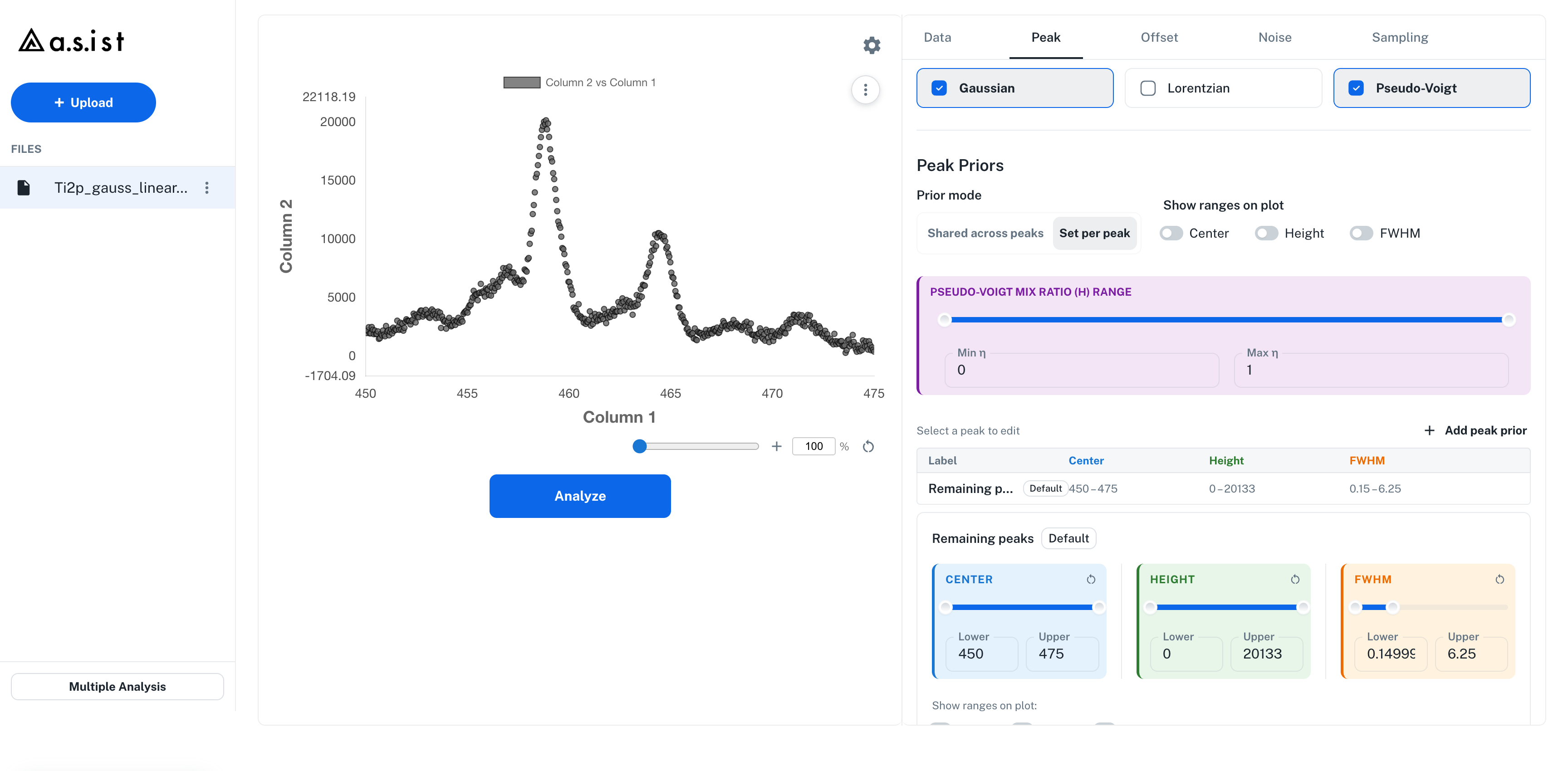
Working in Set per peak mode:
- Switch
Prior modetoSet per peak - The list table shows the existing per-peak settings plus
Remaining peaks(the defaults, marked with aDefaultchip) - Click a table row to edit Center / Height or Area (\(S\)) / FWHM in the detail panel below
- Use the
+ Add peak priorbutton to create a new entry - To remove an unneeded entry, click the delete icon and confirm in the "Remove settings" dialog
5.3.2 Lock Icon (Range / Fixed Toggle)
Each parameter in Peak Priors / Offset / Noise has a Lock icon next to its heading for toggling between Range and Fixed.
- Range: estimated over a lower-to-upper range
- Fixed: given as a single fixed value and not estimated
The current mode is shown by the Range / Fixed chip next to the heading. Switching to Fixed replaces the slider with a Fixed Value input field.
Parameters covered by the Lock toggle:
- Peak: In both Shared across peaks and Set per peak modes, Center / Height or Area (\(S\)) / FWHM, and \(\eta_H\) or \(\eta_A\) (Mix Ratio) when pseudo-Voigt is selected
- Offset: Left / Right for Linear / Shirley, and Constant for Constant
- Noise: \(\sigma\) for Gaussian; \(\sigma_0\) / \(\sigma_1\) / \(\sigma_2\) for Modified Gaussian (Poisson is not estimated, so it has no Lock toggle)
- Sampling: no Lock toggle
In Set per peak mode, individual peaks can be set to Fixed only for the leading peaks included in the Min of Model search range; the Lock icon is disabled for all other peaks.
5.3.3 Show ranges on plot
Turning ON the Show ranges on plot toggles (Center / Height or Area / FWHM) visually displays the prior range of that parameter on the spectrum. Dragging the edges of the displayed range updates the prior range (the Global range in Shared mode, or the range of the peak currently being edited in Set per peak mode). In Set per peak mode, an entry created with Add peak prior inherits the Global Show ranges settings at the time of creation.
5.4 Area ratio constraints
The Area ratio constraints (collapsible section) lets you impose area ratios between peaks as constraints.
Example: applying a known branching ratio such as Fe 2p3/2 : Fe 2p1/2 = 2 : 1.
This section appears only when Prior mode is set to Set per peak and there are two or more per-peak prior entries (add them with + Add peak prior).
How to use
- The chip at the top right of the section shows "Optional" or "N constraint(s)". Click to expand
- Use the
+ Add constraintbutton to create a constraint group and select the Reference Peak (the peak estimated freely) - Use the
+ Add dependent peakbutton to add dependent peak rows, and in each row set: - Dependent Peak: the peak constrained to
ratiotimes the Reference - Ratio: a positive real number
- In Area mode, Optional shape links: choose
Independent(default) orSame as referenceforFWHM linkand, for pseudo-Voigt,η_A link - The formula badge is displayed as:
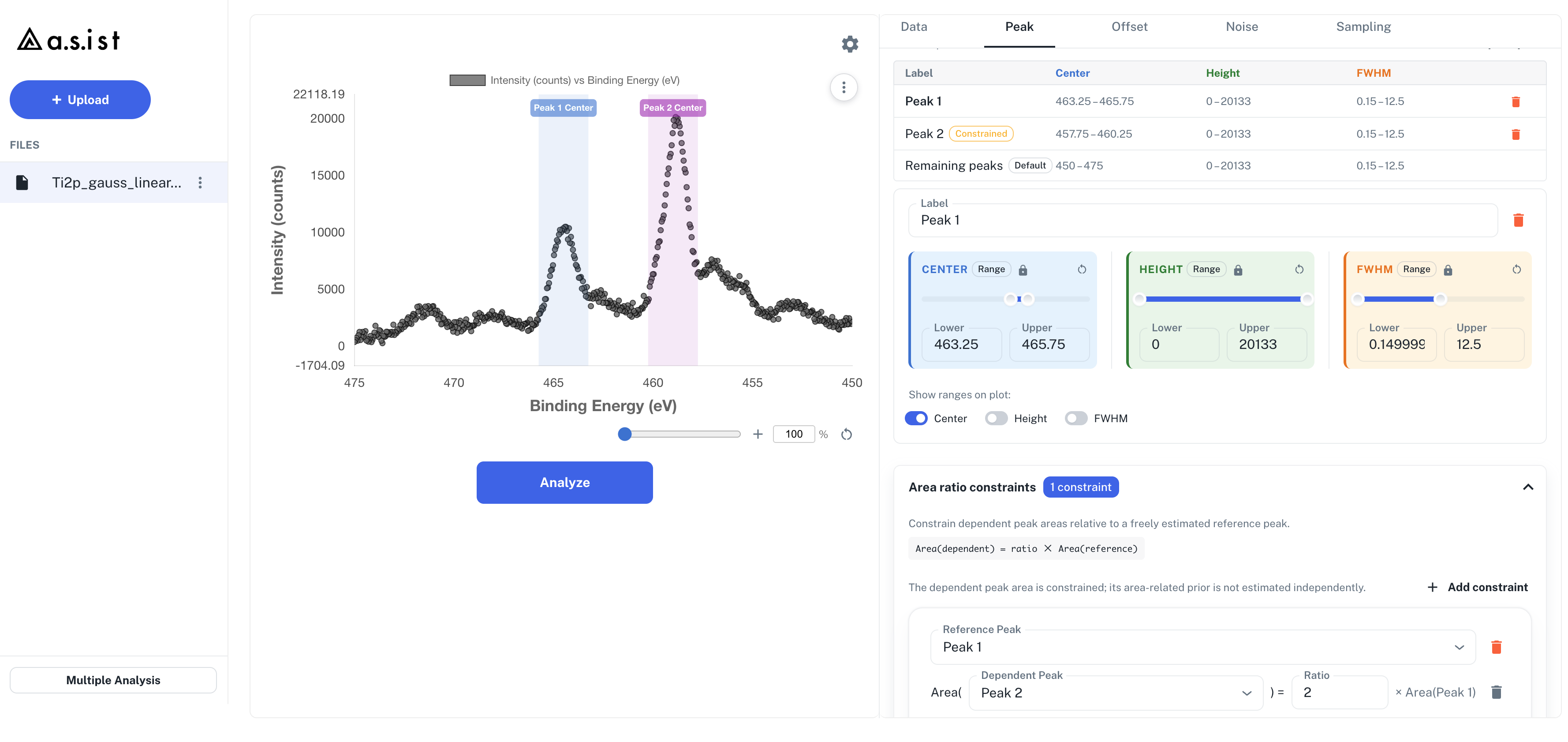
Area(dependent) = ratio × Area(reference)
The Area-mode area ratio constraint is an S-only constraint applied to \(S\) alone. For a dependent peak, \(S_{dependent}=ratio\times S_{reference}\) is enforced exactly, while FWHM and \(\eta_A\) are estimated independently by default. Set the Optional shape links to Same as reference only when the shapes must also match. Therefore, specifying an area ratio by itself does not constrain the FWHM / \(\eta_A\) prior editors.
In Height mode, the legacy Height-form constraint is used for compatibility with existing results. Do not treat it as the same model as the Area S-only constraint.
For example, setting the Reference Peak to Peak 1, the Dependent Peak to Peak 2, and the Ratio to 2 constrains the area of Peak 2 to twice that of Peak 1.
Validation
- Dependent peak number less than or equal to the Reference → red error alert
- The same peak set as Dependent in multiple constraints → red error alert
- A Dependent chained as the Reference of another constraint → red error alert
- Ratio of 0 or less → input field enters an error state with helper text
Must be > 0
Display in the List Table
In the Set per peak list table, rows for peaks designated as a Dependent Peak show a Constrained chip. In Area mode, Area (\(S\)) shows Constraint controlled. FWHM / \(\eta_A\) are shown as constrained only when the corresponding Optional shape link is set to Same as reference.