Chapter 8 Sampling Settings and Running an Analysis
8.1 Sampling Tab
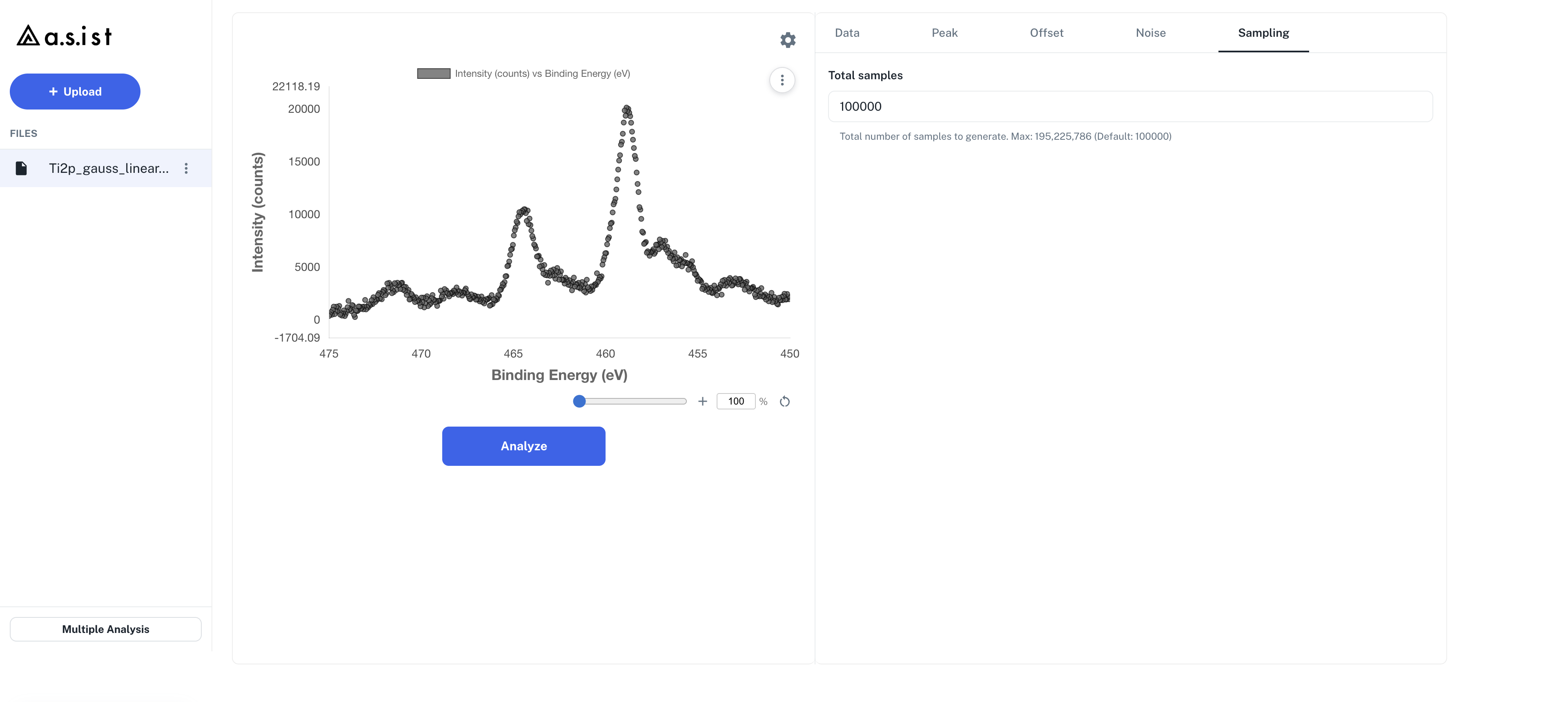
The items configured in the Sampling tab differ between the GPU and CPU editions.
GPU Edition
| Field | Description | Default |
|---|---|---|
| Total samples | Total number of samples to generate | 100,000 |
The upper limit for Total samples is adjusted automatically according to the analysis settings and is shown under Max:.
CPU Edition
| Field | Description | Default |
|---|---|---|
| Total samples | Total number of samples to generate | 100,000 |
| Burn-in steps | Number of initial iterations discarded before collecting the posterior distribution | 50,000 |
| Number of Replicas | Number of independent computations run in parallel. Increasing it tends to stabilize convergence | 50 |
In the CPU edition, the effective sample count = Total samples − Burn-in steps.
Effects of Increasing the Sample Count
- Estimation accuracy of the posterior distribution improves and convergence tends to be easier
- On the other hand, computation time and resource consumption grow more than linearly
- Widening the peak-count search range also increases the number of models to evaluate, so computation time grows multiplicatively
The GPU edition consumes GPU analysis time. For large groups or analyses with wide search ranges, we recommend verifying the conditions on a small dataset before the full run.
8.2 Running an Analysis (Analyze)
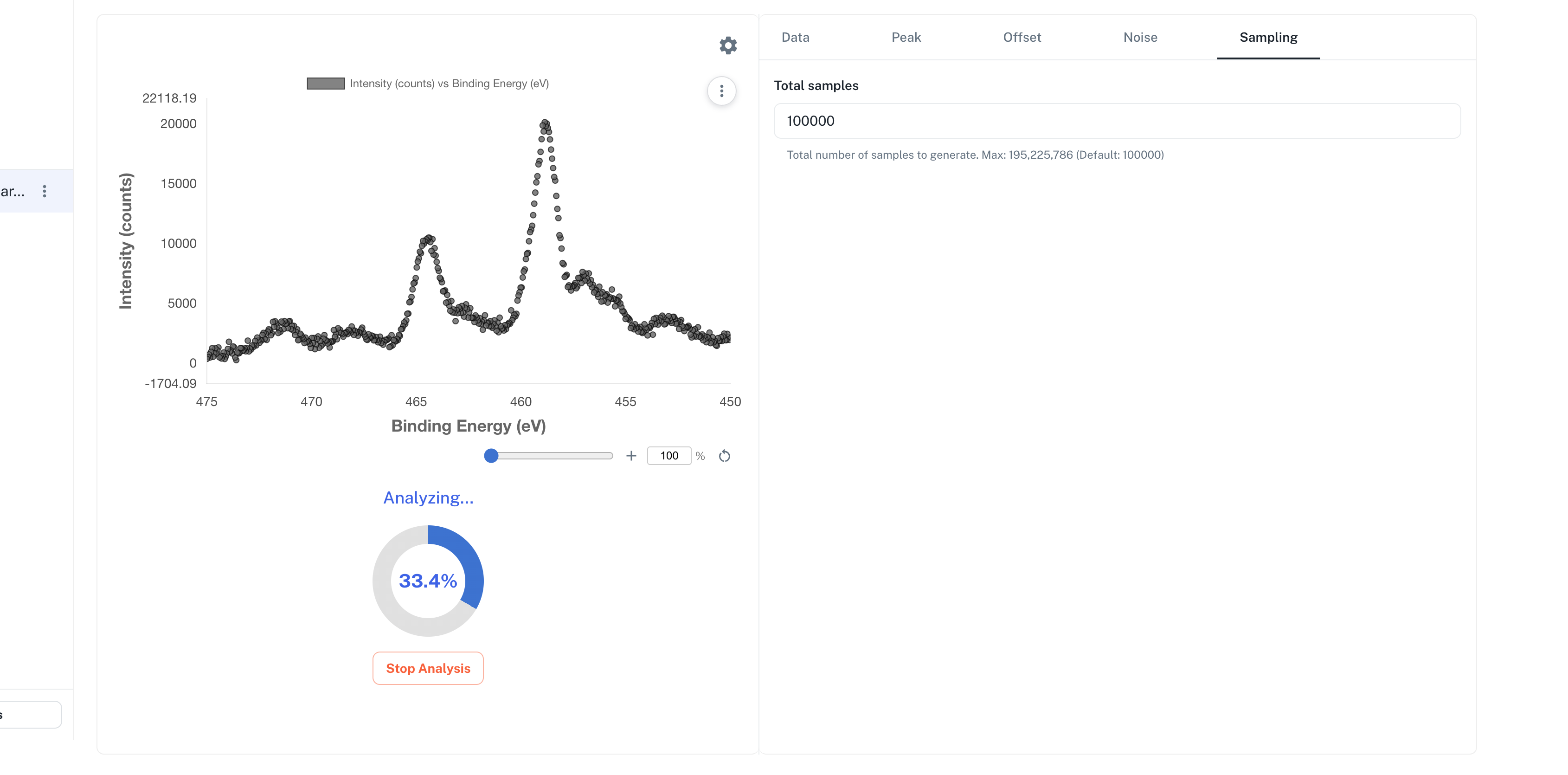
Once all tabs are configured, click the Analyze button below the central plot.
Analysis Progress
- The button changes to a circular progress indicator with the progress percentage (0.0 to 100.0 %) shown in the center
- A
Stop Analysisbutton appears below the indicator - Because the internal progress estimate updates intermittently, the display may appear to pause, but internal processing is still running
- When complete, the results are drawn in the plot area and the button returns to
Analyze
GPU Edition Retries
During recovery from a temporary network or server issue, progress may appear to pause. If processing is incomplete, verify that all expected models appear in the model-comparison plot and rerun the analysis if necessary.
Stop Analysis
You can abort a running analysis. When aborted, intermediate results up to that point are discarded.
8.3 Confirmation Dialog on Re-analysis
If you press Analyze again while results are already displayed, a confirmation dialog titled Replace current results? appears.
| Button | Behavior |
|---|---|
| Run new analysis | Discards the existing results and starts a new analysis |
| Cancel | Closes the dialog without doing anything (results are kept) |
This prevents accidentally losing existing results through an unintended click.
8.4 Notes on Changing Settings
- Changing values in the settings tabs during an analysis does not affect the analysis currently running (they apply from the next
Analyze) - When switching to a different data file, prior ranges and similar settings are automatically recomputed to match the data statistics
- Reloading the data may also reset the Sampling settings to their defaults
8.5 About Run Time
Run time varies greatly depending on the execution mode, the number of data points, the peak search range, the selected Peak Functions, and Total samples.