Chapter 2 Setup
2.1 Getting Started with the Web Edition
- Open the Web edition URL
- On the sign-up screen, enter your email address and password
- Check the boxes to agree to the Terms of Service and Privacy Policy
- Complete email verification
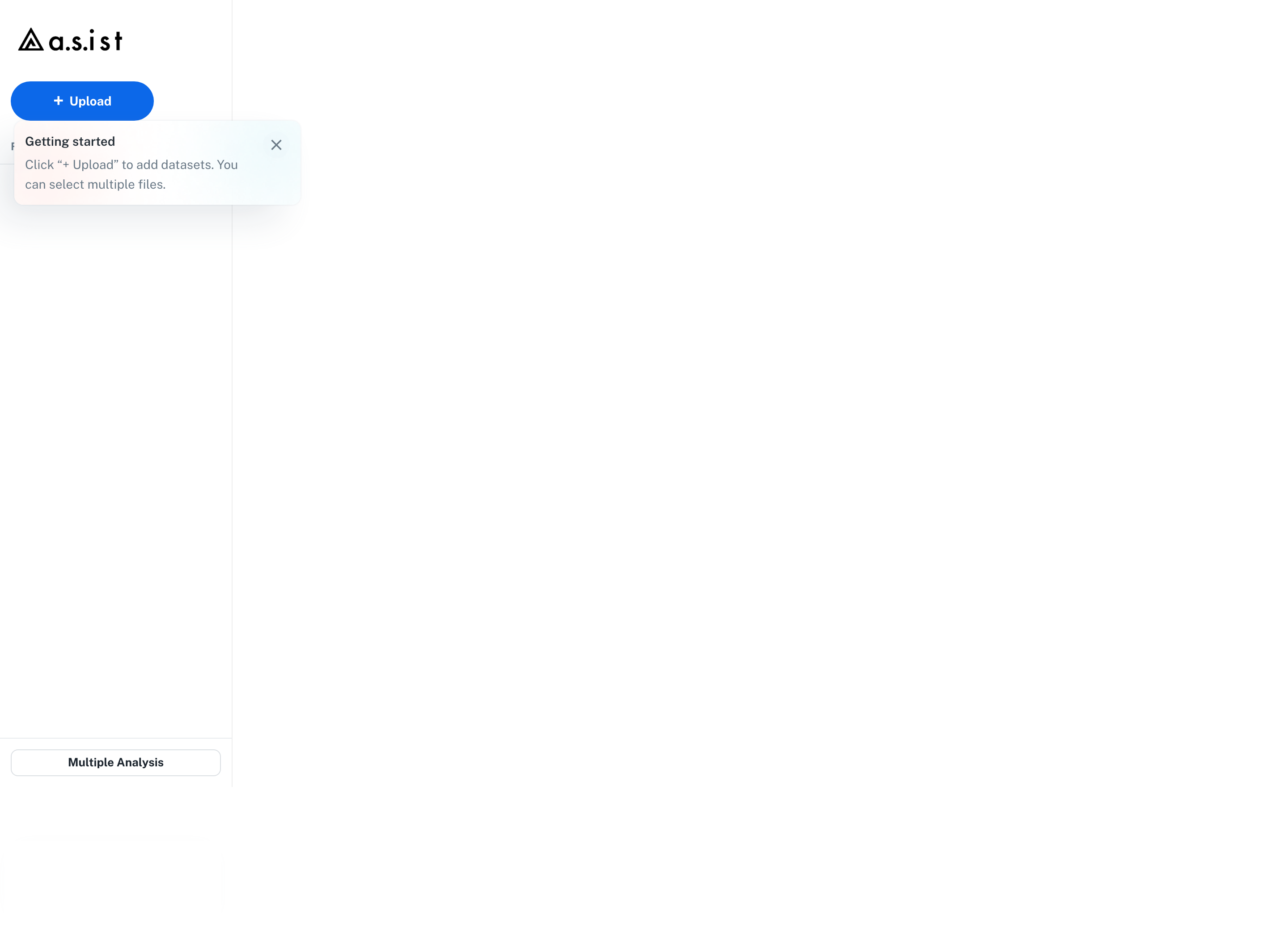
- Open the main screen with a trial or an active subscription plan
The Web edition tracks your remaining GPU analysis time, remaining trial days, and subscription status based on your account. Trials are limited both by the number of days and by GPU analysis time.
2.2 Installing the Desktop Edition
- Launch the distributed installer
- macOS:
.dmgfile - Windows:
.exeinstaller - Follow the installer instructions to complete the installation
- Launch the application after installation
- If the EULA is shown on first launch, review and accept it
- Enter your license key to activate
- Setup is complete when the main screen appears
Tip: In the Desktop edition, analysis runs on your local PC. A network connection is required for license verification and for opening the purchase page.
Automatic updates
When connected to the network, the Desktop edition automatically checks for updates. A banner appears when a new version is available.
2.3 License and Billing Screens
In the Web edition, open the Subscription or Pricing screen from the user menu at the top right of the screen. There you can check your subscription status, remaining GPU analysis time, and payment status.
In the Desktop edition, depending on your license status, the app shows the license key entry dialog and links to start a trial, open the purchase page, or open the portal screen.
2.4 Handling Warnings at Launch
Warnings on macOS
Official release installers are signed and notarized with an Apple Developer ID, so they normally launch without warnings. If the download was interrupted and the file is corrupted, download it again.
If the app is reported as "damaged", you can remove the quarantine attribute by running the following in Terminal (only if you obtained the app from a trusted source):
xattr -d com.apple.quarantine "/Applications/AutoStatSpectra.app"
SmartScreen warnings on Windows
If "Windows protected your PC" is shown, click More info and then select Run anyway. Once the code signing certificate has accumulated enough reputation, the warning will no longer appear.